How to Send TradingView Alerts to Telegram Instantly

You can send TradingView alerts to Telegram right now using one of three paths: call the Telegram Bot API directly from TradingView’s webhook (fastest, minimal code), route through a no-code automation platform like Pipedream, Make, or Zapier (easiest for non-developers), or run a small self-hosted bridge for chart screenshots and advanced routing logic.
Three paths at a glance:
- Direct webhook to Telegram Bot API. TradingView POSTs a JSON payload straight to Telegram’s
sendMessageendpoint. Sub-second delivery, no third-party subscription, but you write a small URL and JSON body yourself. - No-code automation platform. Pipedream, Make, or Zapier sits between TradingView and Telegram, handles retries, and lets you transform payloads visually. Zero code, but adds a small latency hop and may cost money at scale.
- Self-hosted bridge (FastAPI/Flask + Playwright). A lightweight server you control adds chart screenshots, message queuing, and custom routing. Most powerful, most maintenance.
Pro Tip: TradingView’s webhook feature is locked behind a paid plan. You need TradingView Pro, Pro+, or Premium to fire webhooks at all. Also, your Telegram bot must receive at least one message from you before it can reply to anyone — open the bot in Telegram and send /start before testing.
Key Takeaways
The direct webhook to Telegram’s Bot API is the fastest and most cost-effective way to send TradingView alerts to Telegram, requiring only a bot token, a chat ID, and a valid JSON payload.
| Point | Details |
|---|---|
| Direct webhook is fastest | Call Telegram’s sendMessage endpoint directly from TradingView for sub-second, free delivery. |
| Paid plan required | TradingView webhooks need Pro, Pro+, or Premium — the free plan cannot fire webhooks. |
| Automation platforms add retries | Pipedream, Make, or Zapier handle retries and transforms but add latency and potential cost. |
| Self-hosted bridge for screenshots | FastAPI or Flask with Playwright captures chart images; use for signal services needing media. |
| Never expose your bot token | Store it in environment variables; rotate it via BotFather if it’s ever shared or leaked. |
| Big Move Algo integrates natively | Big Move Algo signals fire as TradingView alerts and route to Telegram using any method above. |
Table of Contents
- How do you send TradingView alerts to Telegram with a direct webhook?
- Copy-paste webhook URLs and JSON payloads you can use now
- How do Pipedream, Make, and Zapier fit into this setup?
- Which method is right for you? Direct webhook vs. platforms vs. self-hosted
- How do you run a self-hosted bridge for chart screenshots?
- Common errors and how to fix them fast
- Security, privacy, and Telegram limits you must know
- Copy-paste message templates for TradingView alerts
- Why direct webhooks are usually fastest, and when a bridge is worth it
- Why starting with the direct webhook is the right call
- Big Move Algo signals work with every method in this guide
- Official docs and useful repositories to read next
- Sources
How do you send TradingView alerts to Telegram with a direct webhook?
This is the fastest working setup. Three components: a Telegram bot, your chat ID, and a TradingView alert configured to POST JSON to Telegram’s API. The full three-step flow is well-documented, and once it clicks, the whole thing takes under 15 minutes.
Step 1: Create your Telegram bot with BotFather
- Open Telegram and search for @BotFather.
- Send
/newbot, follow the prompts, and pick a name and username. - BotFather returns a bot token that looks like
7123456789:AAFxxxxxxxxxxxxxxxxxxxxxxxxxxxxxxxx. Copy it somewhere safe. - Open your new bot and send
/start— this initializes it so the API can reach you.
Step 2: Find your chat ID
Your chat ID tells Telegram where to deliver the message. The method differs slightly depending on where you want alerts to land.
| Destination | How to get the ID |
|---|---|
| Private chat (you) | Message the bot, then visit https://api.telegram.org/bot<TOKEN>/getUpdates and read result[0].message.chat.id |
| Group | Add the bot to the group as admin, send a message, then call getUpdates — the ID is a negative integer |
| Channel | Add the bot as admin, post a message, call getUpdates — channel IDs use the -100 prefix (e.g., -1001234567890) |
| Public channel | Use @yourchannelusername directly as the chat ID |
Pro Tip: If getUpdates returns an empty array, the bot hasn’t received any messages yet. Send /start to the bot or post something in the group first, then call getUpdates again.
Step 3: Build the webhook URL
The Telegram Bot API endpoint for sending messages is:
https://api.telegram.org/bot<YOUR_TOKEN>/sendMessage
TradingView will POST to this URL with a JSON body in the alert’s Message field.
Step 4: Configure the TradingView alert
- Open TradingView and click the Alerts clock icon (or press
Alt+A). - Set your alert condition as usual.
- In the Notifications tab, check Webhook URL and paste your full
sendMessageendpoint. - In the Message field, paste your JSON payload (see Section 3 for exact examples).
- Click Create and watch your Telegram for the test fire.
The webhook URL IS the delivery mechanism. TradingView does not call Telegram separately — it POSTs whatever you put in the Message field directly to the URL you supply. That means your JSON body must be valid, and the
chat_idandtextfields must be present or the API returns a 400 error.
Copy-paste webhook URLs and JSON payloads you can use now
These are ready to drop into TradingView’s alert Message field. Replace YOUR_TOKEN and YOUR_CHAT_ID with your actual values before saving.
Minimal plain-text alert
{
  "chat_id": "YOUR_CHAT_ID",
  "text": "Alert fired on {{ticker}} at {{close}}"
}
Formatted Markdown alert with TradingView placeholders
{
  "chat_id": "YOUR_CHAT_ID",
  "text": "*{{ticker}}* alert on `{{interval}}` chart
Price: `{{close}}`
Time: {{time}}",
  "parse_mode": "Markdown"
}
Strategy alert with order placeholders
{
  "chat_id": "YOUR_CHAT_ID",
  "text": "Strategy signal: {{strategy.order.action}} {{ticker}} @ {{strategy.order.price}}",
  "parse_mode": "Markdown"
}
Pro Tip: Use parse_mode: "Markdown" for bold and code formatting, or "HTML" if you prefer <b> tags. Mixing both in one message breaks formatting — pick one and stick with it.
Test with curl before touching TradingView
Paste this into your terminal to confirm the bot token and chat ID work before creating any alert:
curl -X POST "https://api.telegram.org/botYOUR_TOKEN/sendMessage" \
  -H "Content-Type: application/json" \
  -d '{"chat_id":"YOUR_CHAT_ID","text":"Test from curl"}'
A successful response looks like:
{"ok":true,"result":{"message_id":42,"chat":{"id":-1001234567890},"text":"Test from curl"}}
If ok is false, the error description tells you exactly what went wrong — usually a bad token or wrong chat ID format.
Channel IDs need the
-100prefix. If your channel’s numeric ID is1234567890, the value you pass aschat_idis-1001234567890. Skipping the prefix is the single most common reason channel alerts fail silently.
How do Pipedream, Make, and Zapier fit into this setup?
No-code platforms are the right call when you want retries, payload transformation, or conditional logic without writing server code. The tradeoff is a small latency hop (typically a few hundred milliseconds to a few seconds depending on the platform’s trigger polling) and potential cost once you exceed free-tier limits.
When to choose a platform over a direct webhook
- You need guaranteed delivery with automatic retries on failure.
- You want to filter, reformat, or branch alerts before they reach Telegram.
- You’re not comfortable editing JSON or managing a server.
- You want a visual log of every alert that fired and what it sent.
General setup flow (applies to Pipedream, Make, and Zapier)
- Create an account on your chosen platform.
- Create a new workflow or scenario and add a Webhook trigger — the platform gives you a unique URL.
- Paste that URL into TradingView’s Webhook URL field on your alert.
- Add a Telegram: Send Message action (all three platforms have a native Telegram module).
- Map the incoming payload fields (e.g.,
{{ticker}},{{close}}) to the Telegram message body. - Test the workflow by firing a TradingView alert manually, then enable it.
Platform comparison at a glance
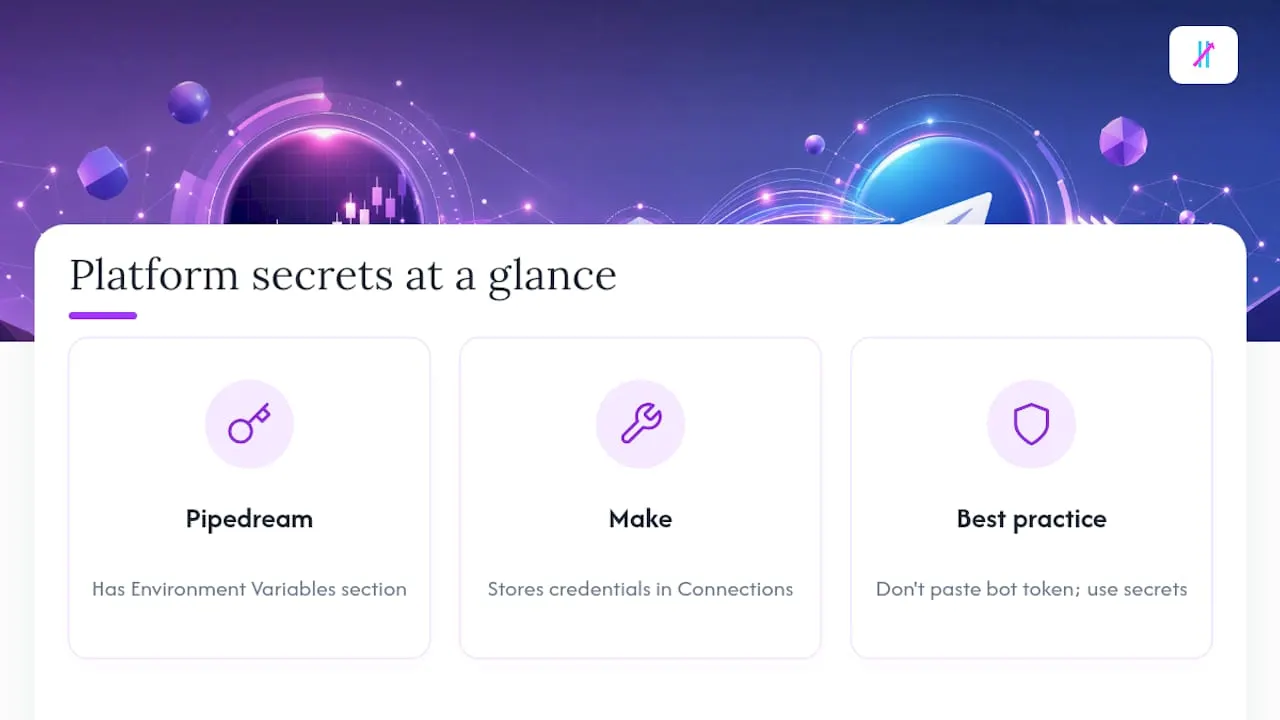
Pro Tip: Never paste your bot token directly into a platform’s UI text field if you can avoid it. Use the platform’s built-in secrets or environment variable store instead. Pipedream has a dedicated Environment Variables section; Make stores credentials in Connections.
Which method is right for you? Direct webhook vs. platforms vs. self-hosted
The honest answer depends on what you need alerts to do, not just how fast you want to set them up.
- Direct webhook is the right default for most traders. No subscription, no middleman, sub-second delivery. The only real downside is that if Telegram’s API returns a transient error, TradingView won’t retry.
- Automation platforms earn their place when you need retries, branching logic, or you’re building a multi-step workflow (e.g., alert fires → log to Google Sheets → send to Telegram). The free tiers are tight for high-frequency traders.
- Self-hosted bridge makes sense for signal providers who need chart screenshots attached to every alert, or for traders who want full control over routing, logging, and retry behavior without paying a per-operation fee.
| Method | Ease | Latency | Cost | Features | Maintenance | Security |
|---|---|---|---|---|---|---|
| Direct webhook | Moderate (JSON required) | Sub-second | Free | Text only | None | Bot token in TradingView alert |
| Automation platform | Easy (visual) | Seconds | Free to ~$20+/mo | Text, transforms, retries | Low | Token stored in platform |
| Self-hosted bridge | Developer setup | Sub-second | VPS around $5 per month | Screenshots, queuing, logs | Medium | Token in env variable |
How do you run a self-hosted bridge for chart screenshots?
A self-hosted bridge is a small web server you deploy that sits between TradingView and Telegram. TradingView POSTs to your server; your server enriches the alert (screenshot, formatting, routing) and forwards it to Telegram. The tedawf/tradingview-telegram-alerts project is the clearest reference implementation: it uses FastAPI to receive webhooks, Playwright to capture a headless Chromium screenshot of the chart, an async worker queue to avoid blocking the webhook response, and then posts the image to a Telegram channel.
Minimum components
- FastAPI or Flask app to receive the POST from TradingView.
- Playwright (or Puppeteer) for headless chart screenshots.
- Async queue (Python
asyncioor Redis + worker) to throttle screenshot jobs. - HTTPS endpoint — TradingView only POSTs to HTTPS URLs.
Deployment checklist
- Set environment variables:
TG_BOT_TOKENandTG_CHANNEL_ID— never hardcode them. - Point a domain at your server and provision a TLS certificate (Let’s Encrypt is free).
- Run the app as a systemd service or Docker container so it restarts on failure. The TonySchneider/tradingview_telegram repo includes a working systemd unit file.
- Add a
/healthendpoint and monitor it — if the server goes down, alerts drop silently. - Test with curl before connecting TradingView.
The medamine1920/tradingview-telegram-webhook project is a lighter option if you don’t need screenshots — it’s a FastAPI app deployable to Railway or Render in a few clicks, with health and status endpoints already wired up.
Pro Tip: Railway and Render both offer free tiers that can host a lightweight FastAPI bridge. For a low-volume personal setup, either platform keeps your hosting cost at zero. Add a Redis add-on only if you’re running high alert volume and need a persistent queue.
Common errors and how to fix them fast
Most setup failures fall into four categories. Work through this checklist before digging deeper.
Quick diagnostic checklist
- Bot not initialized: open the bot in Telegram and send
/startbefore testing any API call. - Bot not added to group or channel as admin with permission to post messages.
- Wrong
chat_idformat: channels need the-100prefix; groups use a plain negative integer. - TradingView Webhook URL checkbox not enabled in the alert’s Notifications tab.
- TradingView plan is free — webhooks require Pro, Pro+, or Premium.
HTTP error codes and what they mean
| Error code | Cause | Fix |
|---|---|---|
| 401 error means Unauthorized | Bad or expired bot token | Regenerate token via BotFather (/revoke) |
| 400 Bad Request | Wrong chat_id or missing required field |
Check chat_id format; confirm JSON is valid |
| 403 error means Forbidden | Bot not admin in channel/group | Add bot as admin with post permission |
| 429 error means Too Many Requests | Rate limit hit | Add a queue or reduce alert frequency |
Testing workflow
- Run the curl test from Section 3 to confirm token and chat ID work independently of TradingView.
- If curl succeeds but TradingView doesn’t fire, check that the Webhook URL checkbox is enabled and the plan is Pro or higher.
- If using Pipedream or Make, check the workflow’s execution log — the raw request body shows exactly what TradingView sent.
- Call
getUpdatesto confirm the bot received messages and to extract the correct chat ID.
A 400 error almost always means the JSON is malformed or the
chat_idis wrong. Paste your Message field content into a JSON validator like Jsonlint before saving the alert. A single missing quote or trailing comma breaks the entire payload.
Security, privacy, and Telegram limits you must know
Your bot token is a credential with full control over your bot. Treat it like a password.
- Never commit the token to a public GitHub repo or paste it into a public forum. If it leaks, revoke it immediately via BotFather (
/revoke) and generate a new one. - Store tokens in environment variables or a secrets manager (AWS Secrets Manager, HashiCorp Vault, or even a
.envfile that’s in.gitignore). - Bots cannot initiate a private conversation. A user must send the bot at least one message first. For channels and groups, the bot must be added as an admin.
- Channel IDs require the
-100prefix in API calls — this is a Telegram API convention, not a bug.
Pro Tip: Rotate your bot token periodically, especially if you’ve shared it with a third-party platform. BotFather’s /revoke command invalidates the old token instantly and issues a new one without deleting the bot.
Telegram’s API enforces a rate limit of 30 messages per second to the same chat. For most individual traders, this is never a problem. Signal providers broadcasting to large channels during volatile markets can hit it. An async queue handles this cleanly — messages buffer and send in order rather than dropping.
Copy-paste message templates for TradingView alerts
These templates are ready to use in TradingView’s alert Message field. All placeholders use TradingView’s native {{variable}} syntax.
Template 1: Minimal plain text
Alert: {{ticker}} | Price: {{close}} | Interval: {{interval}}
No JSON wrapper needed if you’re using a bridge that accepts plain text. For the direct Telegram API method, wrap it in the JSON structure from Section 3.
Template 2: Formatted Markdown with chart link
{
  "chat_id": "YOUR_CHAT_ID",
  "text": "*{{ticker}}* — `{{interval}}` chart
📈 Price: `{{close}}`
🕐 Time: {{time}}
View Chart",
  "parse_mode": "Markdown"
}
Template 3: Strategy signal with order details
{
  "chat_id": "YOUR_CHAT_ID",
  "text": "🚦 *Signal:* {{strategy.order.action}}
*Ticker:* {{ticker}}
*Entry:* `{{strategy.order.price}}`
*Interval:* {{interval}}",
  "parse_mode": "Markdown"
}
Pro Tip: Telegram’s Markdown parser is strict. If a message fails to send with parse_mode: "Markdown", the most common cause is an unescaped special character (like _, *, or ` in a ticker name). Switch to "HTML" and use <b> and <code> tags instead — HTML mode is more forgiving.
| Template | Format | Best for |
|---|---|---|
| Minimal plain text | None | Quick personal alerts, bridge setups |
| Formatted Markdown | Markdown | Readable alerts with price emphasis |
| Strategy signal | Markdown | Automated strategy entries and exits |
Why direct webhooks are usually fastest, and when a bridge is worth it
Direct-to-Telegram integration eliminates third-party dependencies and typically delivers alerts faster than routing through an automation platform, which adds at least one network hop and sometimes polling delays. For a trader who just wants to know when a signal fires, that speed advantage is real and the setup cost is low.
The case for a self-hosted bridge is narrower but legitimate. If you’re running a signal service and subscribers expect a chart screenshot with every alert, plain JSON won’t cut it. Playwright-based screenshot capture, as demonstrated in the tedawf/tradingview-telegram-alerts project, solves that cleanly. Similarly, if you need conditional routing (send Long signals to one channel, Short signals to another), a bridge handles that in a few lines of Python that no automation platform free tier will cover gracefully.
The direct webhook is not a compromise — it’s the right tool for most traders. Automation platforms and bridges solve real problems, but they solve problems most individual traders don’t have yet. Start simple, and add complexity only when a specific gap forces you to.
For a beginner or intermediate trader, the direct webhook is the answer. For a signal provider with subscribers, a self-hosted bridge pays for itself in credibility. Automation platforms sit in the middle: useful when you need retries or multi-step logic without managing a server.
Why starting with the direct webhook is the right call
The direct webhook method validates your entire alert pipeline in under 15 minutes. You know the bot token works, the chat ID is correct, and TradingView is firing alerts before you’ve spent a dollar on hosting or a platform subscription. That feedback loop matters more than any feature a bridge or automation platform adds.
Once the direct method is running, you’ll know exactly what you need next. If alerts are dropping during volatile sessions, add a queue. If subscribers want screenshots, build the bridge. If you want retries without server management, move to Pipedream or Make. But starting with a bridge or a platform before you’ve confirmed the basics is how traders end up debugging three systems at once.
Big Move Algo’s TradingView indicator generates signals such as Long, Short, and Exit that plug directly into this alert pipeline. The TradingView indicator alerts guide walks through the alert configuration side in detail.
Big Move Algo signals work with every method in this guide
If you want a signal source that’s already built for TradingView’s alert system, Big Move Algo generates real-time Long, Short, and Exit signals across crypto, forex, stocks, indices, and commodities. Every signal fires as a native TradingView alert, which means you can route it to Telegram using the direct webhook, Pipedream, Make, or a self-hosted bridge without any extra configuration.
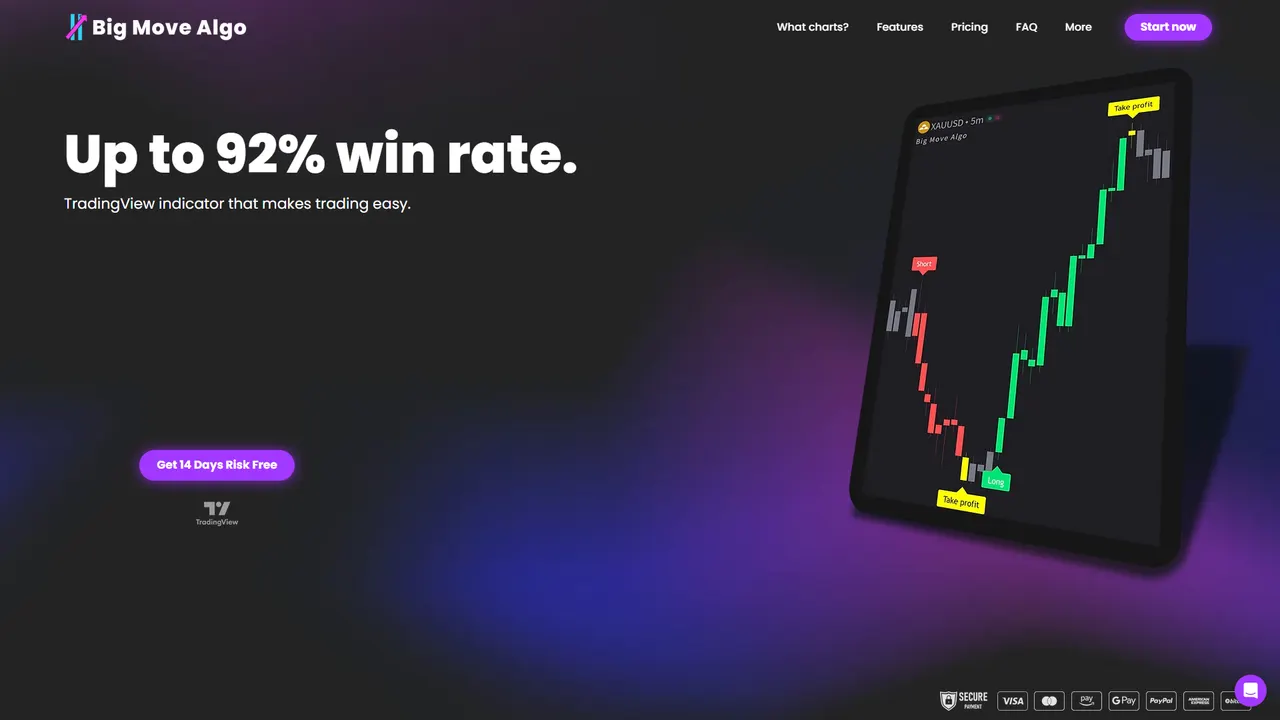
The automation setup page shows exactly how Big Move Algo’s alerts connect to external delivery channels. For traders who want signals and delivery handled together rather than built from scratch, the Big Move Algo indicator is worth a look. Start a subscription, configure one alert, and your Telegram channel gets the signal the moment the market moves.
Official docs and useful repositories to read next
- Telegram Bot API — official reference for all bot endpoints, rate limits, and message formatting options. Open this first to get your bot token from BotFather and to verify endpoint behavior.
- Quant Nomad: TradingView to Telegram (free) — the clearest step-by-step tutorial for the direct webhook method, including chat ID extraction and JSON payload examples.
- medamine1920/tradingview-telegram-webhook — lightweight FastAPI bridge deployable to Railway or Render; good starting point if you want a hosted server without writing everything from scratch.
- tedawf/tradingview-telegram-alerts — the reference implementation for Playwright screenshot capture, async queuing, and channel delivery. Open this if you’re building a signal service.
- TonySchneider/tradingview_telegram — Flask-based alternative with logging and a systemd service example; useful if you prefer Flask over FastAPI or need a production deployment template.
- Marketcalls: TradingView to Telegram without coding — covers the no-code route and explains group vs. channel chat ID differences in plain language.
Sources
- How to Connect TradingView Alerts to Telegram Bots (100% Free) - Quant Nomad
- medamine1920/tradingview-telegram-webhook
- tedawf/tradingview-telegram-alerts
- TonySchneider/tradingview_telegram